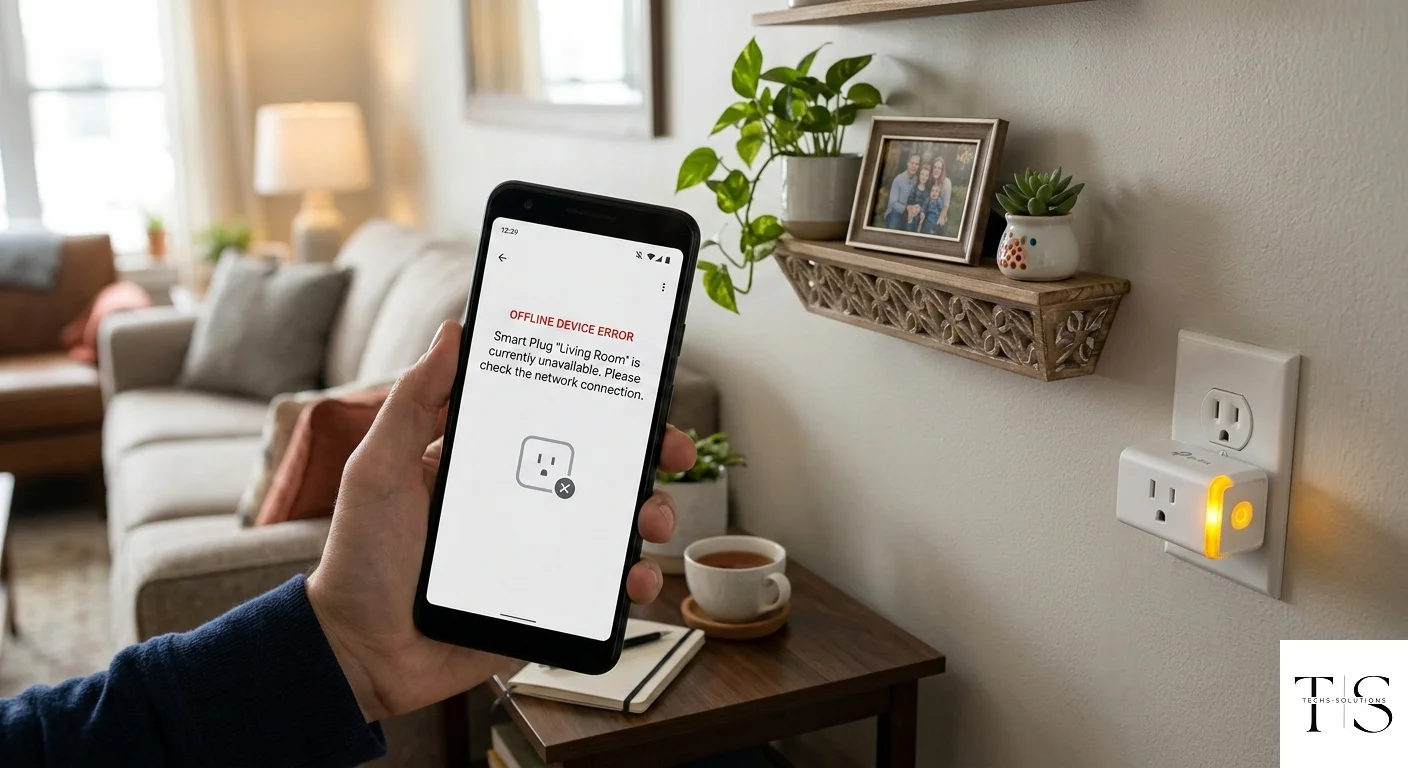
When your TS Smart Home device goes offline, nine times out of ten it is a simple Wi-Fi issue you can resolve in under five minutes.
Step 1 — Check the Basics
Before anything else, verify that the device is still plugged in and receiving power. If the LED is completely off, there is no power reaching the device. Check the wall socket by plugging in a different device. If the socket is fine and the LED is still off or flashing in an unusual pattern, proceed to the next steps.
Step 2 — Check Your Wi-Fi
The TS Smart Home device requires a 2.4 GHz Wi-Fi connection. If your router switched to 5 GHz only, or if you changed your Wi-Fi password, the device will lose its connection and show as offline in the app.
- Changed Wi-Fi password: You will need to re-pair the device with the new password via the app
- Router reboot: Sometimes a router reboot fixes connectivity — wait 2 minutes after rebooting before checking
- Signal strength: Move the device closer to the router if the signal is weak — ESP32 has a limited range
- 2.4 GHz band: Confirm your router is broadcasting on 2.4 GHz, not 5 GHz only
The ESP32 microcontroller inside your device will automatically attempt to reconnect to Wi-Fi after a disconnection. If the network is available and the password has not changed, it will come back online on its own.
Step 3 — Reset and Re-Pair
If the device is still offline after checking the basics, perform a factory reset. Hold the reset button on the device for 5 seconds until the LED flashes rapidly. This resets the Wi-Fi configuration. Open the TS Smart Home app and pair the device again as if it were brand new — your schedules and settings will be restored from the cloud after re-pairing.
When to Contact Support
If you have completed all the above steps and the device is still offline or behaving abnormally, contact the TS Smart Home support team. Provide the device name and the LED pattern you are seeing — this helps us diagnose the issue quickly. Hardware faults are rare but do happen, and our team will guide you through a replacement if needed.
Still Having Issues?
Our support team is ready to diagnose and resolve your connectivity problem. Reach out and we will fix it.
Contact Support