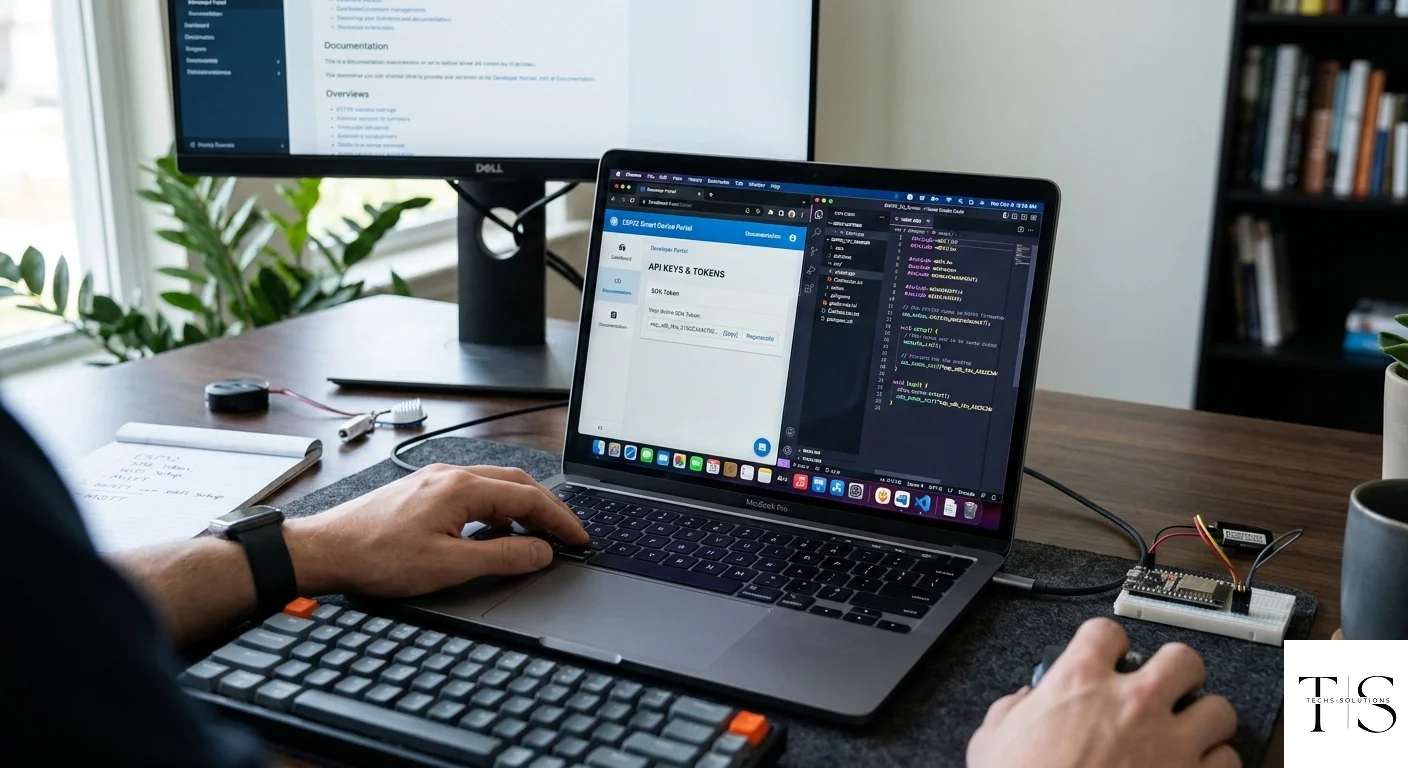
How to Register as a TS Smart Home SDK Developer
The TS Smart Home Developer Portal gives hardware makers, electronics engineers, and IoT product builders access to the official SDK for creating devices that integrate with the TS Smart Home platform. This guide walks you through the entire registration process — from creating your account to receiving your SDK token and making your first device.
Who Should Register as a Developer?
You should register as an SDK developer if you want to:
- Build custom smart home hardware that users can control through the TS Smart Home app
- Create commercial IoT products that connect to the TS Smart Home cloud
- Develop prototype devices for personal or research use
- Add smart home integration to an existing electronic product
If you are just a regular user wanting to control existing smart plugs and switches, you do not need a developer account. The standard user account is sufficient.
Prerequisites
Before registering as a developer, you need:
- A TS Smart Home user account (if you do not have one, create it first through the app)
- A basic understanding of embedded C++ development and the ESP32 microcontroller
- A project description — what you intend to build with the SDK
- Your business or personal details for the registration form
Step 1: Download and Install the TS Smart Home App
If you have not already done so, download the TS Smart Home app from the Google Play Store or Apple App Store and create a user account.
Step 2: Navigate to the Developer Portal
Once logged in to the app:
- Tap the profile icon or go to Account Settings
- Scroll down to find the "Developer Portal" section
- Tap "Register as Developer" or "Developer Access"
Step 3: Complete the Developer Registration Form
The registration form collects information about you and your project. Fill in:
- Full Name / Company Name: Your name or your business name
- Email Address: Your primary contact email (can be the same as your account email)
- Project Name: What you are building (e.g., "Smart Irrigation Controller" or "Custom Power Strip")
- Project Description: A brief description of your device concept and intended use case
- Device Type: What category of device you are building (smart plug, switch, sensor, etc.)
- Intended Volume: Approximate number of units you plan to deploy (prototype, < 100, < 1000, commercial scale)
Be honest and specific in your description. The Techs Solutions team reviews each application and approves developers who have legitimate use cases.
Step 4: Submit and Wait for Approval
After submitting the form:
- You will receive a confirmation email acknowledging your application
- The review process typically takes 1–3 business days
- You may be contacted by the Techs Solutions team for additional information
- Once approved, you will receive an approval notification in-app and via email
Step 5: Retrieve Your SDK Token
After approval:
- Go back to Account > Developer Portal in the app
- Your SDK token will now be visible in the Developer section
- Tap to copy the token to your clipboard
- Store it securely — this is your master credential for all devices you build
Critical Security Warning: Your SDK token identifies your entire device fleet to the TS Smart Home platform. If this token is compromised, all devices you have produced could be affected. Never:
- Commit the token to a public GitHub repository
- Share it in forums, chats, or emails
- Hard-code it in publicly accessible code
>
Store it in a secure environment variable or secrets manager.
Step 6: Download the SDK
From the Developer Portal, you can also:
- Download the latest SDK library for Arduino IDE or PlatformIO
- Access SDK documentation and API reference
- Download example projects to get started quickly
- View your registered device models and manage OTA firmware versions
Step 7: Create Your First Device Model
Before you start writing firmware, register a Device Model in the Developer Portal:
- Go to Developer Portal > Device Models
- Tap "Add Device Model"
- Enter:
- Model ID: A unique identifier for this type of device (e.g., "smart-plug-v1")
- Model Name: Human-readable name (e.g., "TS Smart Plug V1")
- Category: smart plug, switch, sensor, etc.
- Save the model
Each physical device you produce will be associated with a device model. This allows the platform to manage OTA updates correctly — you can push a firmware update to all devices of a specific model.
Step 8: Write and Flash Your First Firmware
With your SDK token and device model ID in hand, you can now write your first firmware:
#include "TSSmartHome.h"#define SDK_TOKEN "your_sdk_token_here"#define MODEL_ID "smart-plug-v1"#define RELAY_PIN 5TSSmartHome device(SDK_TOKEN, MODEL_ID);void setup() { pinMode(RELAY_PIN, OUTPUT); device.begin(); device.onRelayCommand([](bool state) { digitalWrite(RELAY_PIN, state ? HIGH : LOW); device.reportState(state); });}void loop() { device.loop();}Flash this to your ESP32, power it on, and pair it through the TS Smart Home app just like a regular device.
Developer Support
As a registered developer, you have access to:
- Priority support for SDK-related questions
- Developer-specific bug reporting channel
- Advance notice of SDK updates and breaking changes
- Community forum access (coming soon)
Contact developer support through Developer Portal > Help in the app.
Welcome to the TS Smart Home developer community. Build something great.