tutorialPublished on March 7, 2026

How to Pair a Smart Device with TS Smart Home

#pair smart plug wifi#smart device pairing#connect smart plug to app#BLE device setup#wifi smart plug connection#add device smart home#smart plug not pairing fix
How to Pair a Smart Device with TS Smart Home

How to Pair a Smart Device with TS Smart Home

A step-by-step walkthrough of the complete pairing process — from powering on your device to controlling it from your phone.

Works on 2.4 GHz Wi-Fi | Pairing takes 20–40 seconds | Unlimited devices per account

What Is Device Pairing?

Pairing is the process of linking your physical smart hardware — a smart plug, switch, or any TS Smart Home-compatible device — to your cloud account. Once paired, you can control the device remotely, set schedules, monitor its status, and receive push notifications from anywhere in the world.

Before You Begin

Make sure you have the following ready:

  • TS Smart Home app installed and you are logged in to your account.
  • Your device unboxed and powered on — plugged into a wall socket or wired and switched on.
  • Your Wi-Fi password for your 2.4 GHz network.
  • Your phone connected to the same Wi-Fi network the device will use.

Most TS Smart Home devices use the 2.4 GHz Wi-Fi band only. If pairing fails, temporarily connect your phone specifically to your 2.4 GHz network rather than a combined SSID.

Step 1: Power On and Enter Pairing Mode

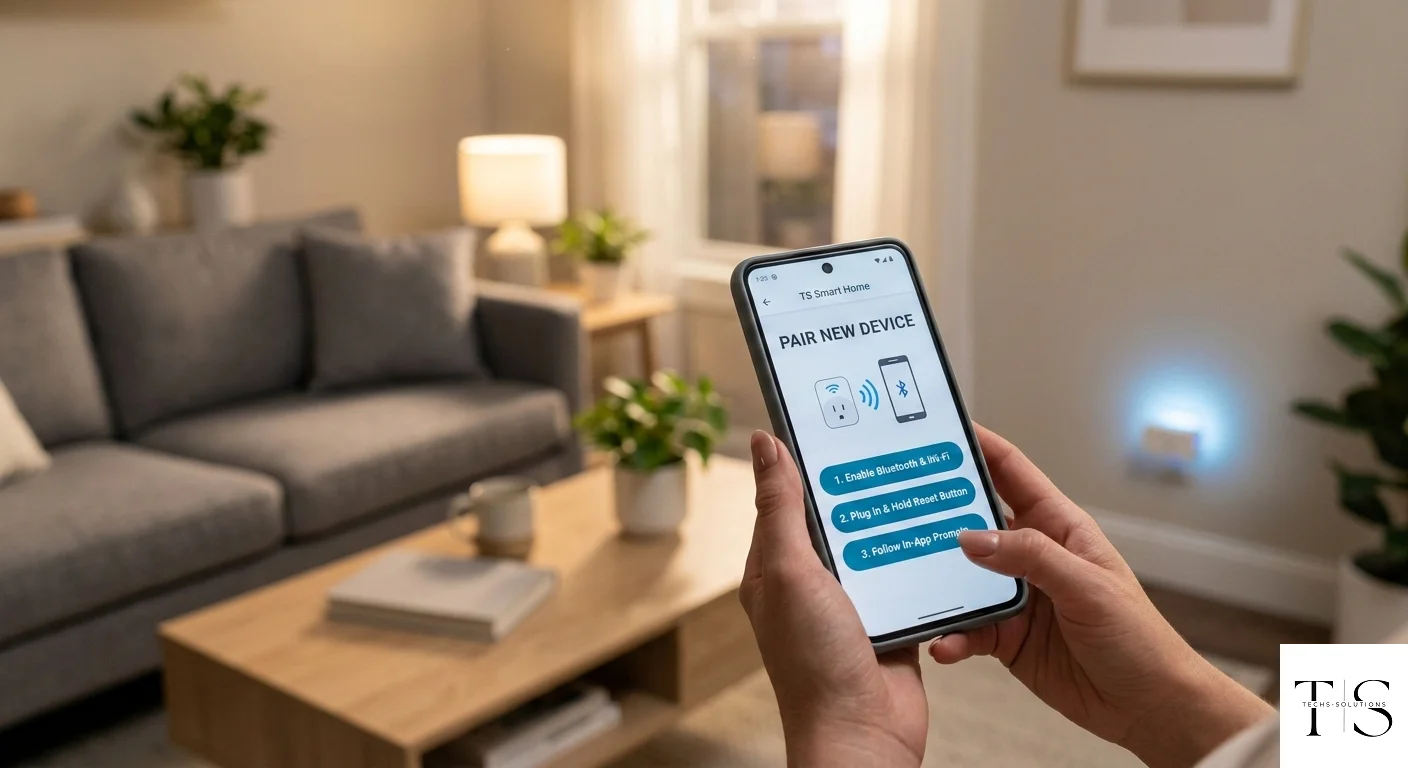
Plug the smart plug into a wall socket. Locate the physical button on the device, then press and hold it for 5 seconds. The LED will begin blinking rapidly — approximately 2 blinks per second. This rapid blinking confirms the device is in pairing mode and ready to be discovered.

If the LED does not blink after 5 seconds, the device may already be paired to another account. Perform a factory reset by holding the button for 10 seconds until the LED blinks in a different pattern, then repeat the 5-second press.

Step 2: Open the App and Add Device

  1. Open the TS Smart Home app.
  2. On the Home Dashboard, tap the + (Add Device) button.
  3. The app will scan for nearby devices in pairing mode.
  4. Your device should appear in the list within 10–30 seconds.

Step 3: Select and Configure

When your device appears in the discovery list, tap it to select it. The app may ask you to confirm the device type. Then you will be prompted to enter your Wi-Fi network name and password — this information is transmitted securely to the device so it can connect to your home network.

Tap Connect. The app shows a progress indicator while the device connects to Wi-Fi and registers with the TS Smart Home cloud. This typically takes 20–40 seconds.

Step 4: Name Your Device and Test

Once connected, you will be prompted to give the device a name. Choose something clear and specific:

  • Living Room Lamp
  • Bedroom AC
  • Kitchen Kettle

Tap Save. Your device now appears on the Home Dashboard. Tap the power icon to toggle it — if the physical device responds, pairing is complete and working correctly.

Common Pairing Problems and Fixes

Device Not Found During Scan

  • Ensure the LED is blinking rapidly (pairing mode must be active).
  • Move your phone closer to the device.
  • Disable mobile data temporarily and rely on Wi-Fi only.

Wi-Fi Connection Fails

  • Double-check your Wi-Fi password for typos.
  • Confirm you are using a 2.4 GHz network, not 5 GHz.
  • Reboot your router and try again.

Device Pairs but Shows Offline Immediately

  • Move the device closer to the router.
  • Check if your router has MAC address filtering enabled — add the device's MAC to the allowed list.
  • Unplug and replug the device to force a reconnection attempt.

Pairing Multiple Devices

You can pair as many devices as you need — the TS Smart Home platform supports an unlimited number per account. For efficiency, put all devices into pairing mode first, then add them through the app one by one in a single session.

Still Having Trouble Pairing?

The Techs-Solutions support team can walk you through any pairing issue. Reach out and we will get your device connected.

تواصل معنا / Get in Touch

    How to Pair a Smart Device with TS Smart Home | Techs-Solutions